
See Scheduler at work
Follow an appointment from the services you set up to the calendar your team uses.
Step 1 of 4
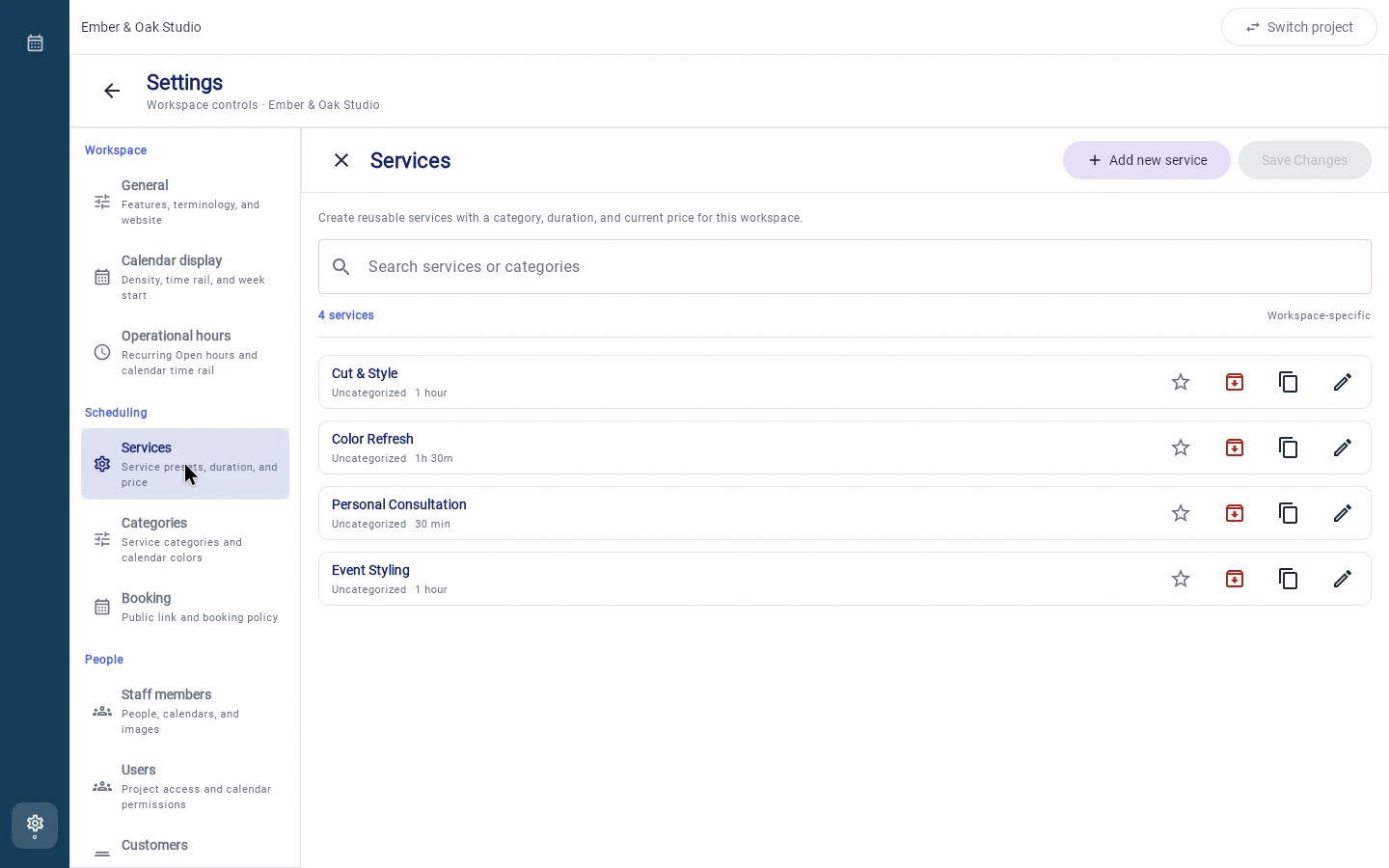
Set up the work people can book
Create the services you offer and set how long each appointment takes. Give your staff their working hours so customers see times your business can actually offer.
- Add services and appointment lengths
- Set staff hours and availability
Step 2 of 4
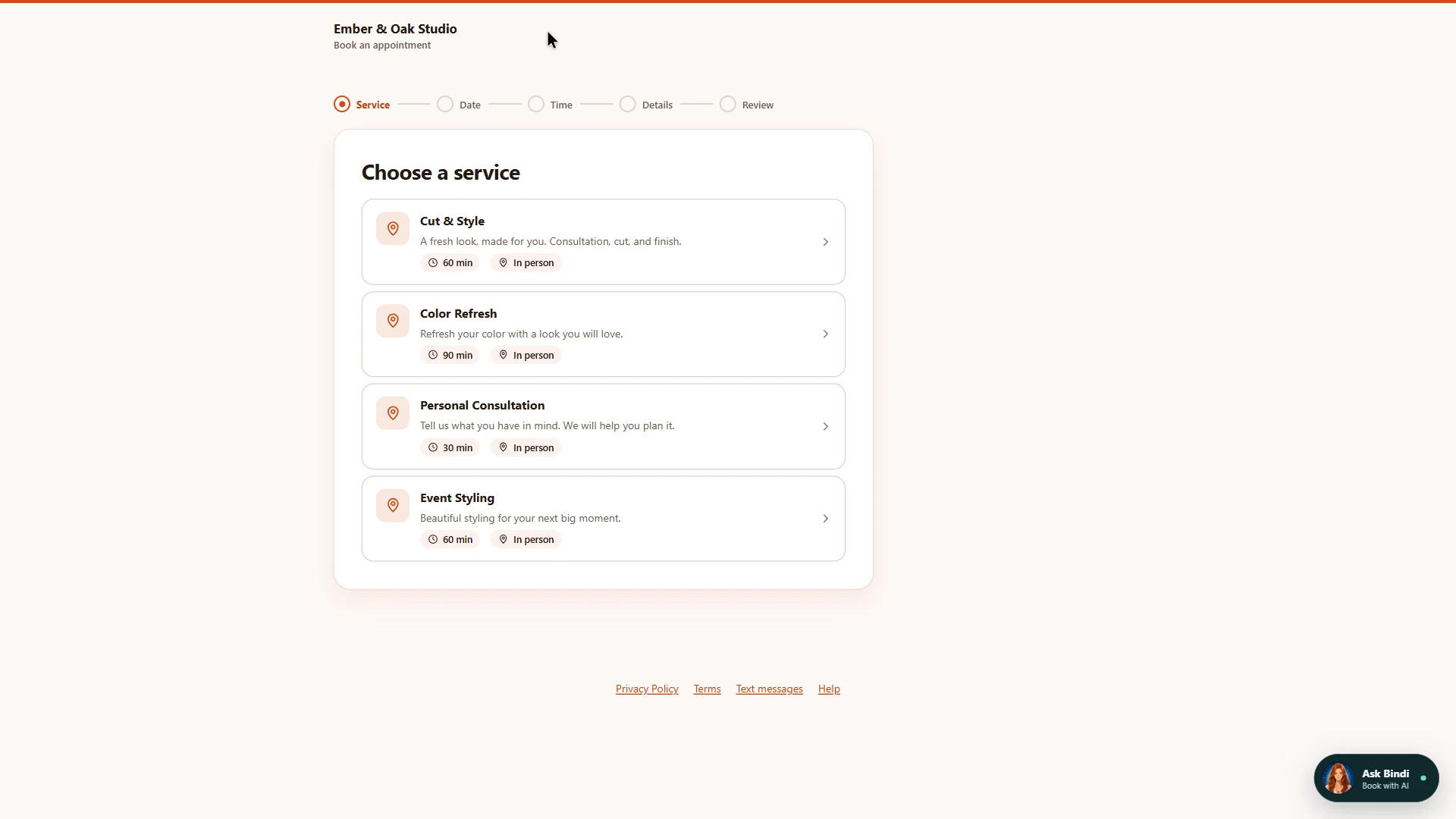
Share a page your customers can book from
Choose which services to show and what details to ask for. Publish one general page or make a separate page for a particular offering. Each published page gets its own link and QR code.
- Choose the services and questions for this page
- Share its link or print the QR code
Step 3 of 4
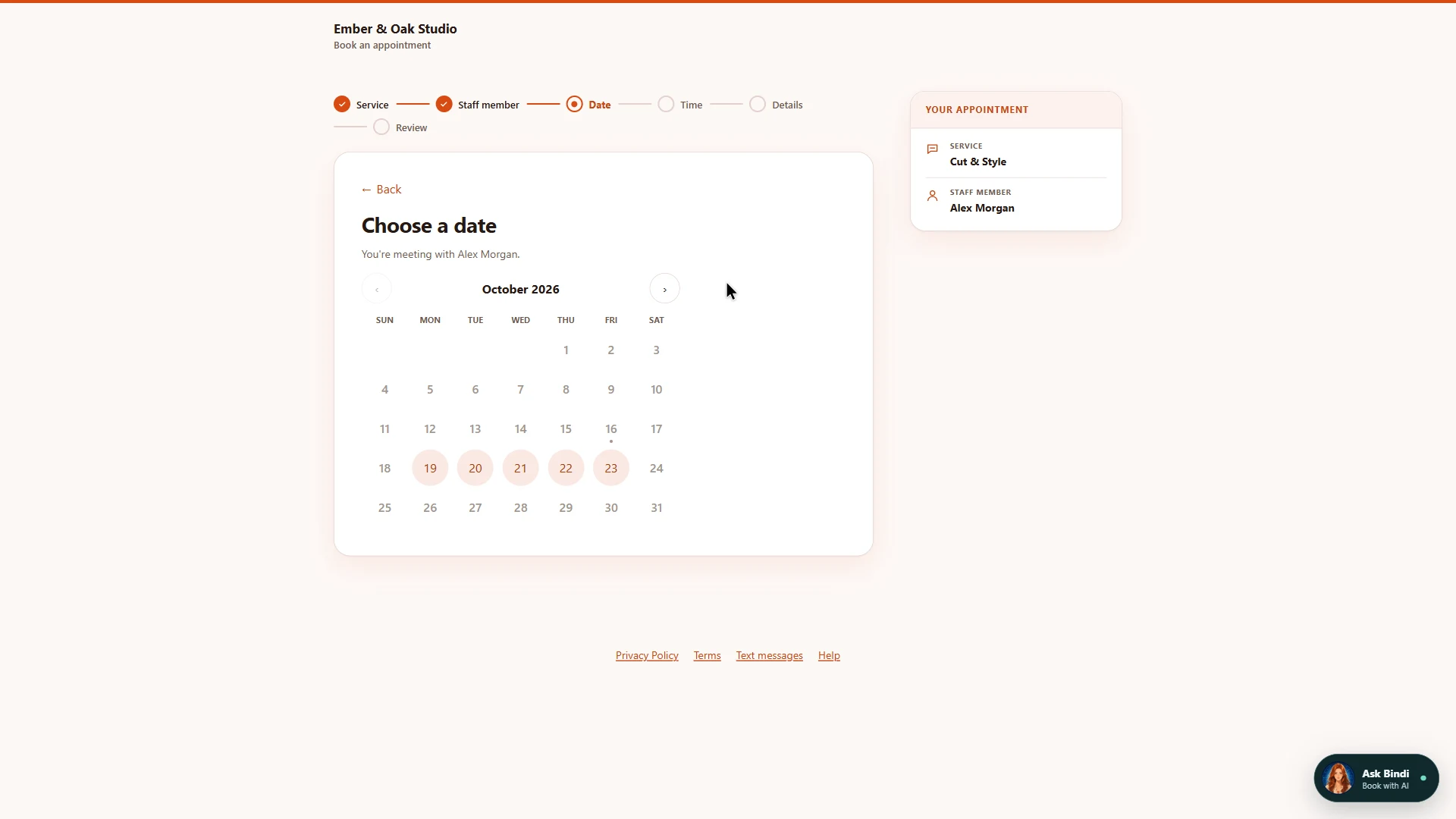
Walk through an appointment as a customer
Choose a service and a staff option if offered, then pick an available date and time. Add any requested details and review the appointment before confirming. For eligible in-person services, the customer can also choose where to meet.
- Pick a service and an available time
- Review the details and confirm
Step 4 of 4
See the booking in your team’s calendar
Find appointments in Day, Week, or Month view. Open a Scheduler appointment to review the booking details, make a change, or move it to another available time. Add time off when a team member is away.
- Open the appointment on your calendar
- Review what was booked or update the appointment
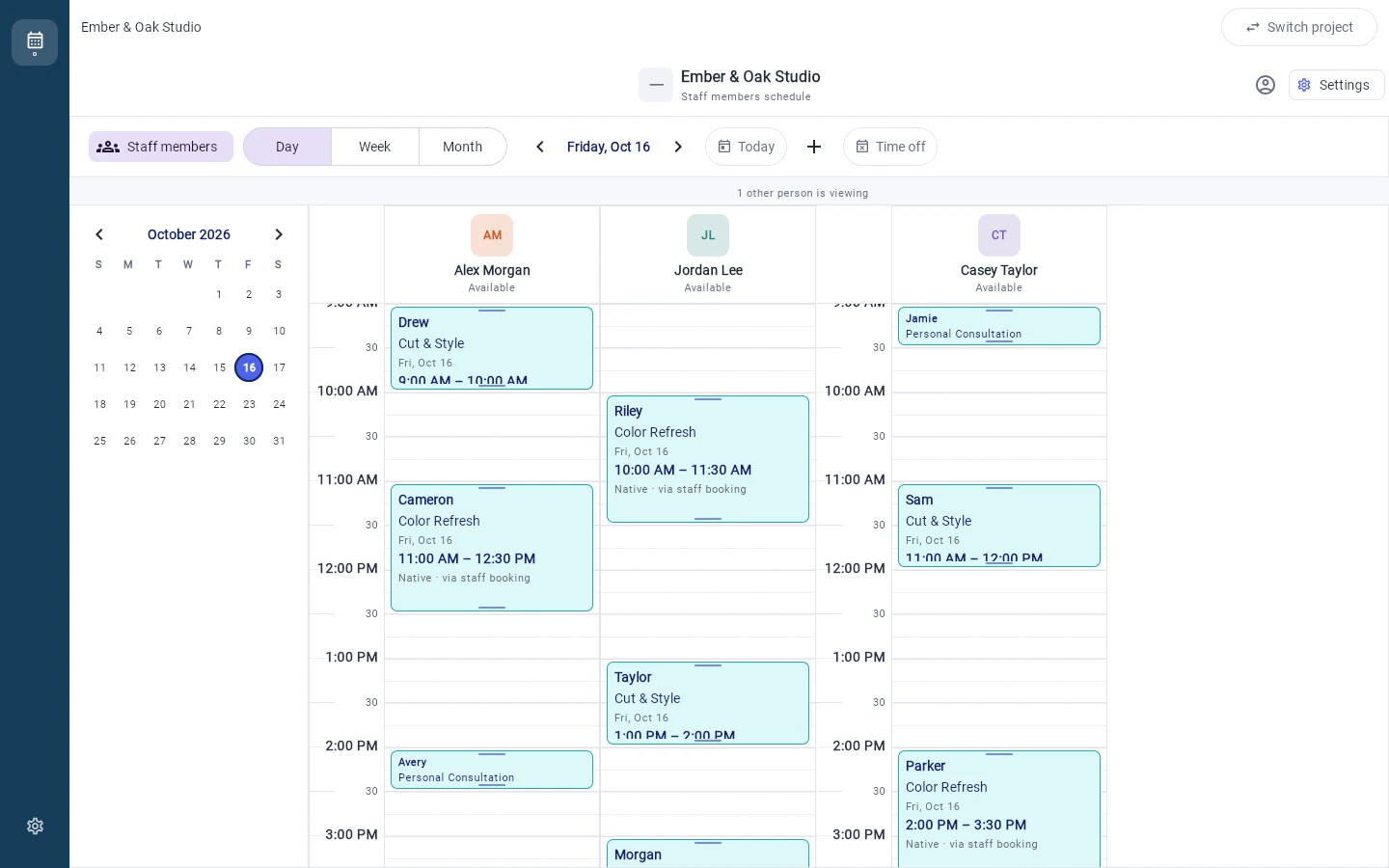
Screenshots and video use a fictional business, Ember & Oak Studio. Confirmation graphics illustrate the booking experience.
Watch the recorded demo
The one-minute video shows the calendar, service setup, and the customer booking experience. Features shown depend on your plan and settings.
See common questions about Scheduler